Text-to-image generation
Create new visuals from a detailed prompt with model-specific aspect ratio, quality, and output controls.
Generate and edit Grok Imagine images with selectable quality, ratios, batch controls, and saved results.
FSG AI is an independent product and is not affiliated with xAI or X Corp. Model availability, pricing, moderation, and provider rules may change.
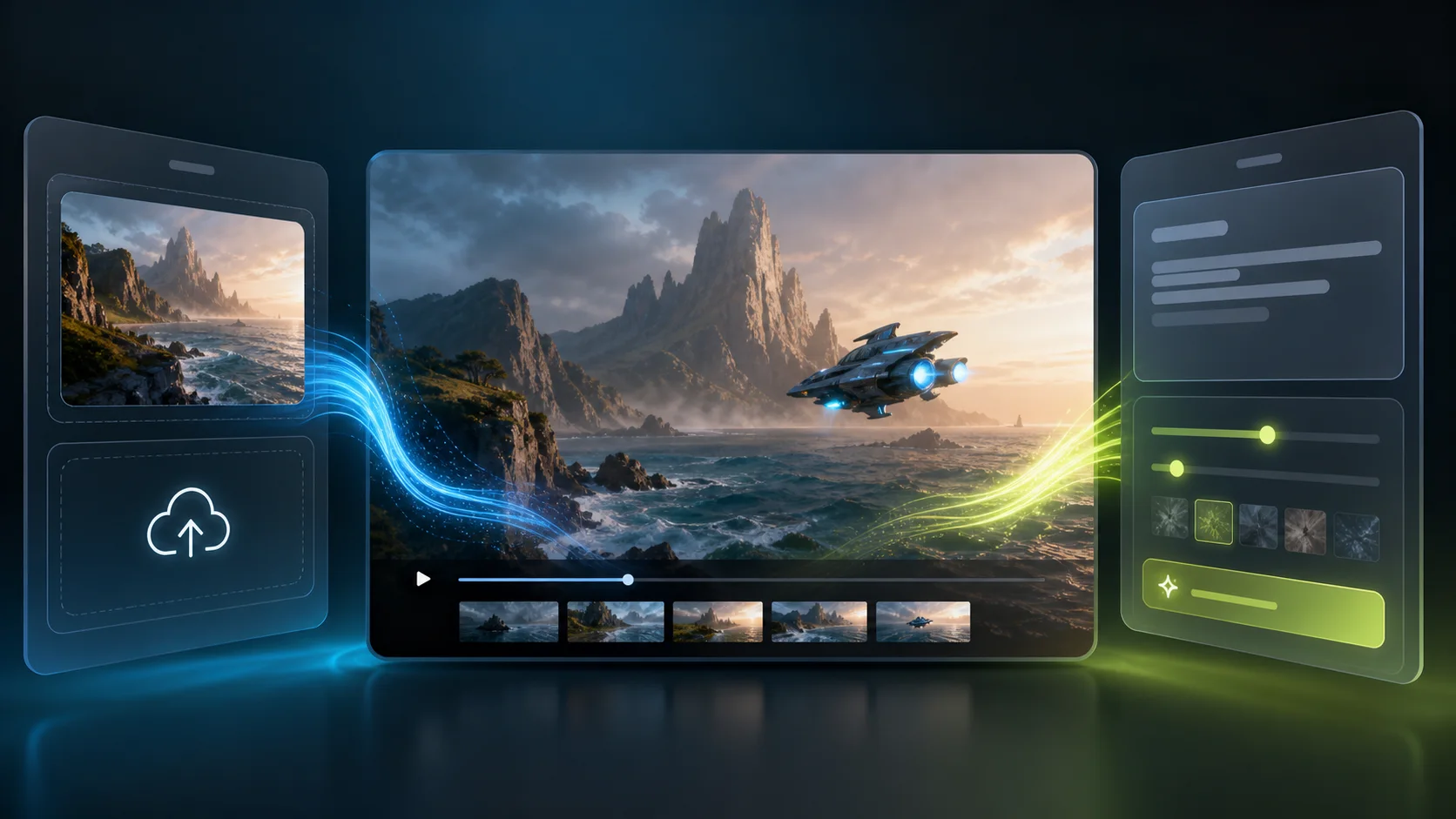
Create new visuals from a detailed prompt with model-specific aspect ratio, quality, and output controls.
Select an edit-capable Grok Imagine model to transform an uploaded image with natural language instructions.
Output count and quality settings are included when the studio estimates the required credits.
Successful image tasks remain available for review, download, copying, and follow-up creative work.
Text-to-image is selected by default. Switch to image-to-image or another Grok image variant when needed.
Describe subject, composition, setting, lighting, material, color direction, and intended aspect ratio.
Select the supported quality, ratio, format, and output count that match how the image will be used.
Download a successful result, edit it with a compatible model, or use it as a source frame for image-to-video.
Yes. Select a text-to-image model, enter a visual prompt, choose the supported output settings, and submit the generation.
Yes. Choose an image edit or image-to-image variant, upload the required source image, and describe the intended change.
Batch support depends on the selected model. When available, the output count control and estimated credit cost update together.
Yes. Download the image or keep its result available, then open the image-to-video workflow and use it as the source frame.